
How to Add a Free Exchange Rate Widget to Your Website
Embed a self-updating Vietnam exchange rate table and currency converter on your blog, WordPress or Blogger site with one snippet. Free, 3 languages, step-by-step screenshots.
Run a travel blog, an expat forum, a study-abroad agency site or a tour company website, and want visitors to see today's exchange rates in Vietnam right on your page? Tỷ Giá Hà Nội offers a free exchange rate widget: copy one snippet, paste it into your site, and the rate table updates itself every 5 minutes. This guide walks you through it step by step, with screenshots.
👉 Open the widget builder: Free exchange rate widget for your website
What does the widget look like?
The widget is a compact table showing buying and selling rates for the currencies you choose on Hanoi's free market, with an optional currency converter.
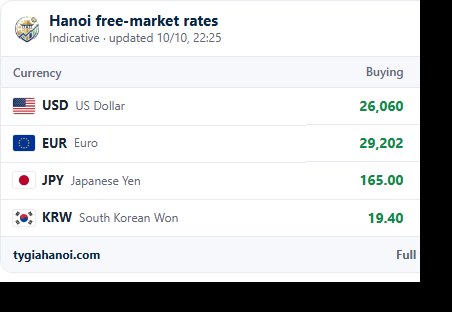
Light style with four currencies: USD, EUR, JPY and KRW.
Here it is in the sidebar of a travel blog:
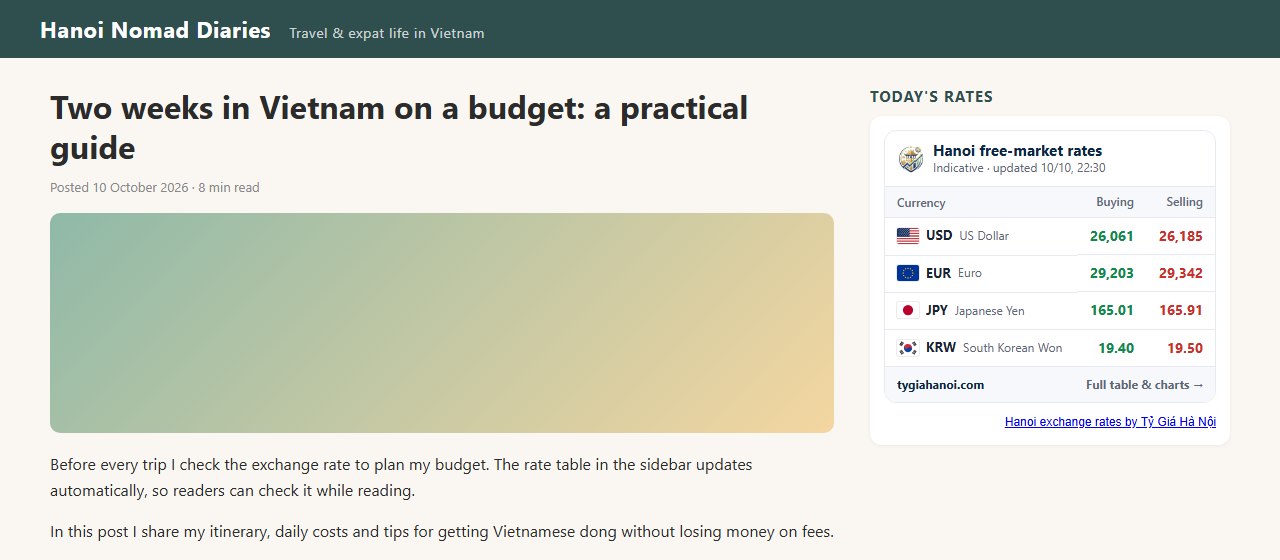
The widget adapts to the width of its container: sidebar, inside a post or in the footer.
Why use it:
- Free for any website.
- Updates every 5 minutes automatically.
- 3 languages: Vietnamese, English and Simplified Chinese.
- Choose from 16 currencies: USD, EUR, GBP, JPY, AUD, SGD, THB, CAD, CHF, HKD, CNY, TWD, NZD, KRW, MYR, RUB.
- Light, dark or auto style to match your site.
- Lightweight, so it won't slow down your pages.
Step-by-step: create your widget
Step 1: Open the widget builder
Go to tygiahanoi.com/en/widget (or click "Rate widget for your site" in the footer). Options are on the left; the preview and embed code are on the right.
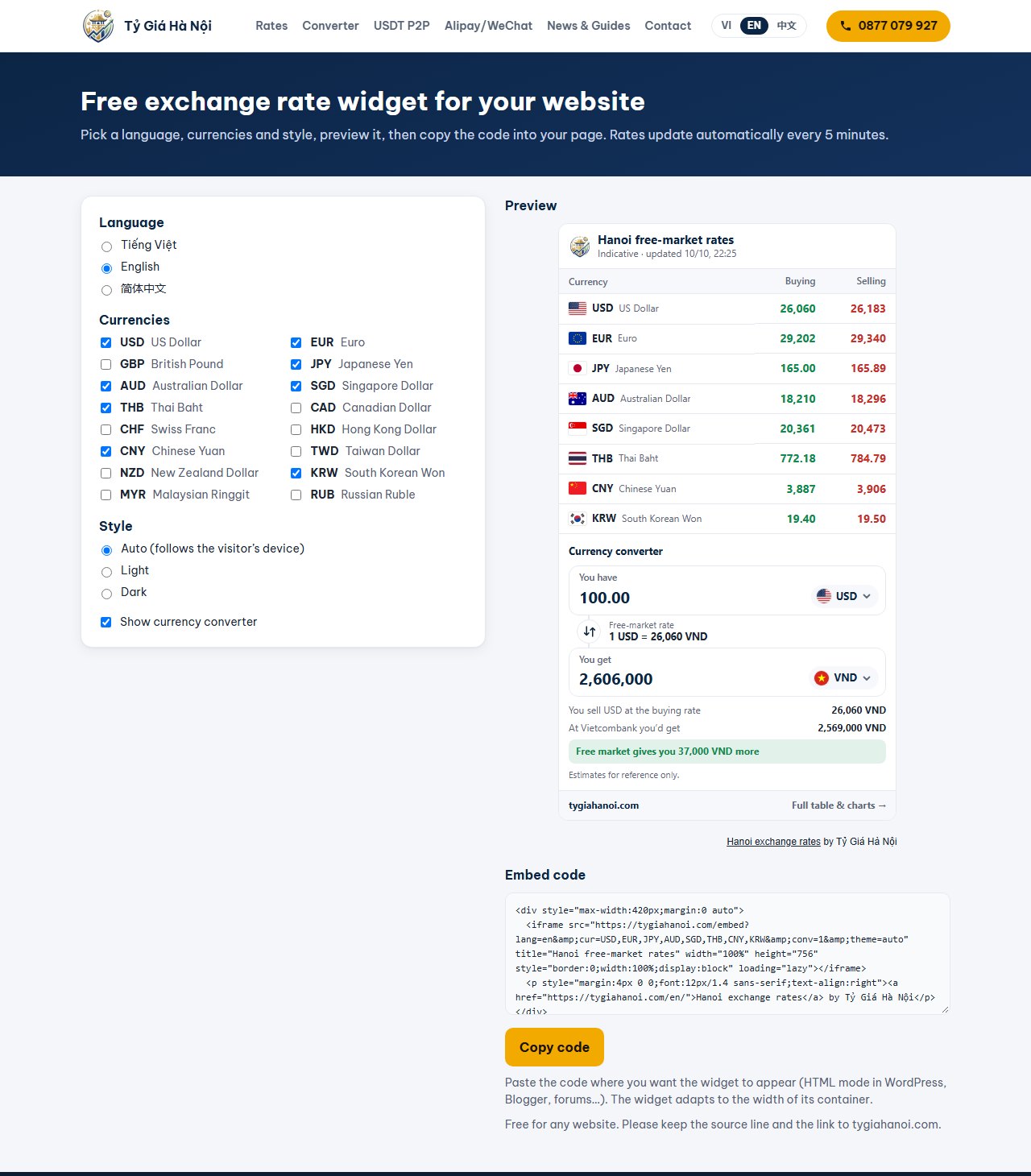
The widget builder: pick options on the left, preview and copy the code on the right.
Step 2: Choose a language
Pick Tiếng Việt, English or 简体中文. Currency names, titles and the converter follow this language.
Step 3: Choose currencies
Tick the currencies your readers care about. For example:
- Korea travel blog: KRW, USD.
- Study-abroad agency: USD, AUD, GBP, CAD.
- Expat community in Hanoi: USD, EUR, GBP, JPY.
Step 4: Choose a style
- Auto: light or dark, following the visitor's device setting.
- Light or Dark: fixed, to match your site's colours.
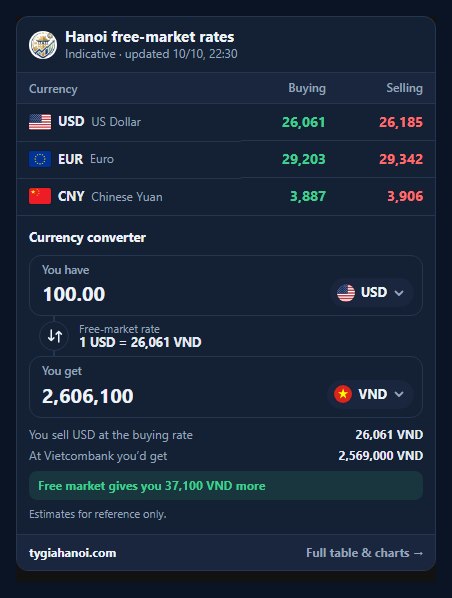
Dark style with the currency converter enabled.
Step 5: Show or hide the converter
Tick "Show currency converter" to let visitors calculate how much they get when exchanging, compared with the Vietcombank rate. Untick it for small spaces.
Step 6: Preview and copy the code
The preview updates instantly. When you're happy, click "Copy code" below the Embed code box.
Paste the code into your website
Paste the code where you want the widget, in HTML mode:
- WordPress: in the editor, add a Custom HTML block and paste. For the sidebar: Appearance → Widgets → Custom HTML.
- Blogger: Layout → Add a Gadget → HTML/JavaScript, paste and save.
- Wix, Webflow, Squarespace…: use the Embed code / Embed HTML element.
- Forums and custom sites: paste wherever HTML is allowed.
The widget adapts to its container (up to 420px wide), and its height is pre-calculated for the number of currencies you chose.
Good to know
- Please keep the source line and the link to tygiahanoi.com below the widget.
- Rates are indicative free-market rates, not an offer to buy or sell currency.
- To change currencies or style later, return to the builder and replace the old code with the new one.
FAQ
Is the widget free?
Yes, for any website.
Do the rates update automatically?
Yes, every 5 minutes, from the same data as our exchange rate table.
Does it work on mobile?
Yes. It adapts to the screen width.
Need another currency or a custom version?
Contact us and we'll be happy to help.
Conclusion
A few clicks and one paste give your website a self-updating exchange rate table and a currency converter. 👉 Create your widget now.